
Test preview

Cialai Broto

Another computer’s terminal, in your Cialai.

Install Broto on a Windows or Linux PC. From Cialai, you and the AI open terminals, run commands and move files there, and every action follows the level you chose for that computer.

For Windows and Linux x64. Requires Cialai 0.5.0 on the computer sending commands.

Install

Install Broto.

With one command that downloads the right package, checks the SHA256 sum and installs it, or with the installer for each system.

On Linux, in the terminal

Debian, Ubuntu, Fedora, openSUSE and others, on x86_64.

curl -fsSL https://cialai.com.br/broto/install.sh | bash

Debian and Ubuntu get the .deb, Fedora, RHEL and openSUSE the .rpm, and the others the .tar.gz with just the service. It runs in your account, and sudo only shows up to install the package.

On Windows, in PowerShell

Windows 10 and 11, x64, on any account.

irm https://cialai.com.br/broto/install.ps1 | iex

Open PowerShell. The script downloads the installer, checks the sum with Get-FileHash and opens the setup. In the Broto window, install the service, paste the code and click Connect. Setup only asks for the Windows consent prompt, with no password, and Broto runs as SYSTEM, with the whole machine.

Windows
10 and 11, x64standard or administrator account
Linux
x86_64with the user systemd
Cialai
0.5.0 or neweron the computer in charge

Or download the installer

Windows

Windows 10 and 11, x64. Works on a standard or administrator account, and on an administrator account the AI can also administer the machine.

Download for Windows

Not yet code signed for Windows. SmartScreen may show an unknown publisher notice.
Linux

x64 packages for the computer that will receive commands.

Debian and Ubuntu use .deb. Fedora and openSUSE use .rpm.

Version and file verification

Preparing this preview’s files.

How to connect

Three steps, and the computer joins the list.

  1. 1

    Install Broto

    With the command above or the installer, on the computer that will receive the commands.

  2. 2

    Create the code in Cialai

    On the computer in charge, open Devices, Brotos and choose Connect new Broto.

  3. 3

    Paste the code and approve

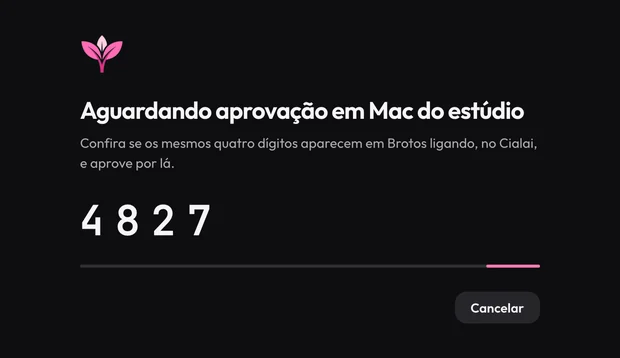
    Paste the code in Broto and click Connect. When the same 4 digits show up on both sides, approve it in Cialai.

Cialai Broto window waiting for approval on Mac do estúdio, with the 4 digits 4827 to check
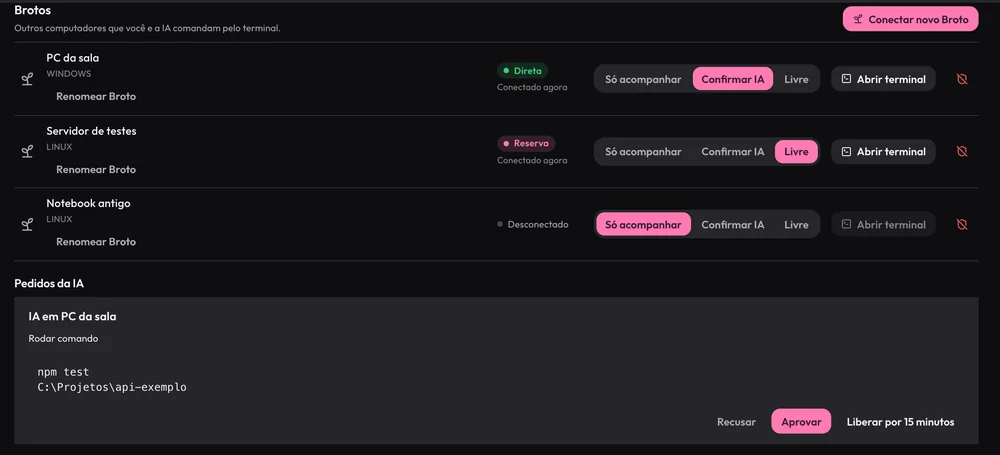
Brotos list in Cialai with three computers, the level of each one and an AI request to run npm test, with Decline, Approve and Allow for 15 minutes
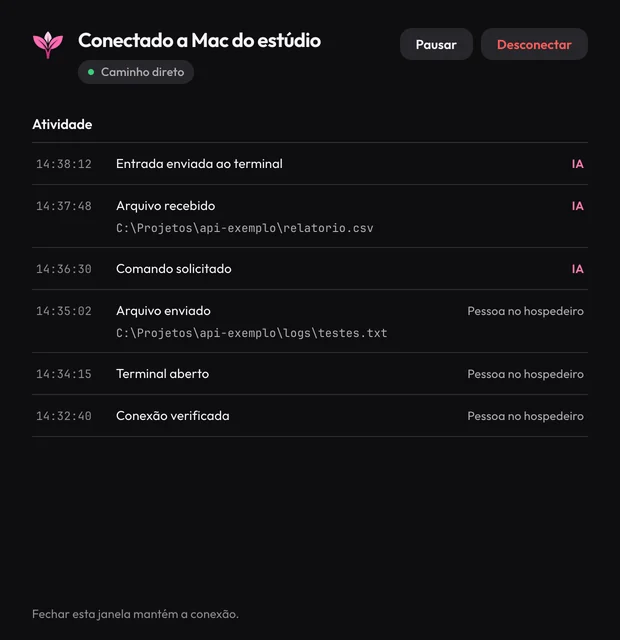
Cialai Broto window connected to Mac do estúdio, with live activity and the Pause and Disconnect buttons

You stay in control

Each computer has its own level.

In Devices, you choose what each Broto accepts. A newly approved Broto starts at Confirm AI.

  • View only

    Sessions and output in sight. Commands and files are refused, for everyone.

  • Confirm AI

    Every command, terminal or file the AI asks for waits for your yes. Allow for 15 minutes skips the question for a while and reverts on its own.

  • Free

    You and the AI work without per-command confirmation, and everything stays in the activity log.

  • Pause and Disconnect on the other end

    Whoever is at the Broto computer can pause or unlink it from its window, even with Cialai turned off.

On the other computer

What Cialai does through Broto.

The other computer works as if it were right here, for you and for the AI working in your Cialai.

Real terminals

Open a terminal on Broto from the Devices list. It becomes a card in the studio, like the ones on your computer.

Commands with results

A command runs in the Broto shell and returns the output and the exit code, no terminal needed.

Files through the tunnel

Send and fetch files between computers, with a size limit and a checksum verified before delivery.

The AI uses it too

Claude Code and Codex control Broto with cialai broto, taught by a skill Cialai installs on request. MCP stays as an alternative.